Set Up the Desktop Client on Windows.
Only needed for uploading. Reviewing always works in your browser, no install required.
2 min walkthrough · no audio required
Required Permissions
The desktop client needs local network access to communicate with your browser. Without this, it will stay offline.
Enable Local Network Access
ReviewRoom's desktop client connects to your browser through a local WebSocket on port 8765. Your firewall or antivirus must allow this connection.
Windows Firewall
Go to Settings > Privacy & Security > Windows Security > Firewall. Click "Allow an app through firewall" and make sure ReviewRoom is checked for both Private and Public networks.
Antivirus Software
If you use a third-party antivirus (Norton, Kaspersky, Bitdefender, etc.), add ReviewRoom as a trusted application or whitelist port 8765 for local connections.
VPN / Proxy
Some VPNs intercept local socket connections. If the client stays offline, try disabling your VPN temporarily and refreshing the browser tab.
Browser Requirements
Use Google Chrome or Microsoft Edge for the best experience. Other browsers may block the local WebSocket connection.
Installation steps
Follow these steps once. After this, uploading is just one click.
Desktop client shows as offline
When you open ReviewRoom, you will see the desktop client status as Offline in the top right corner. This is expected before installation.

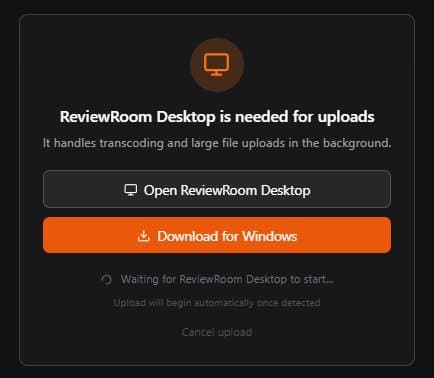
Drag your media and click Download
Drag and drop your media file into the playlist. ReviewRoom will prompt you to open or download the desktop client. Click Download for Windows.
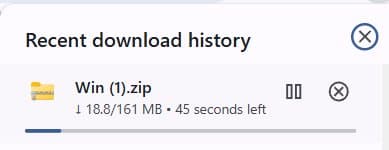
Wait for the ZIP file to download
Your browser will download a ZIP file. Wait for it to finish before moving to the next step.
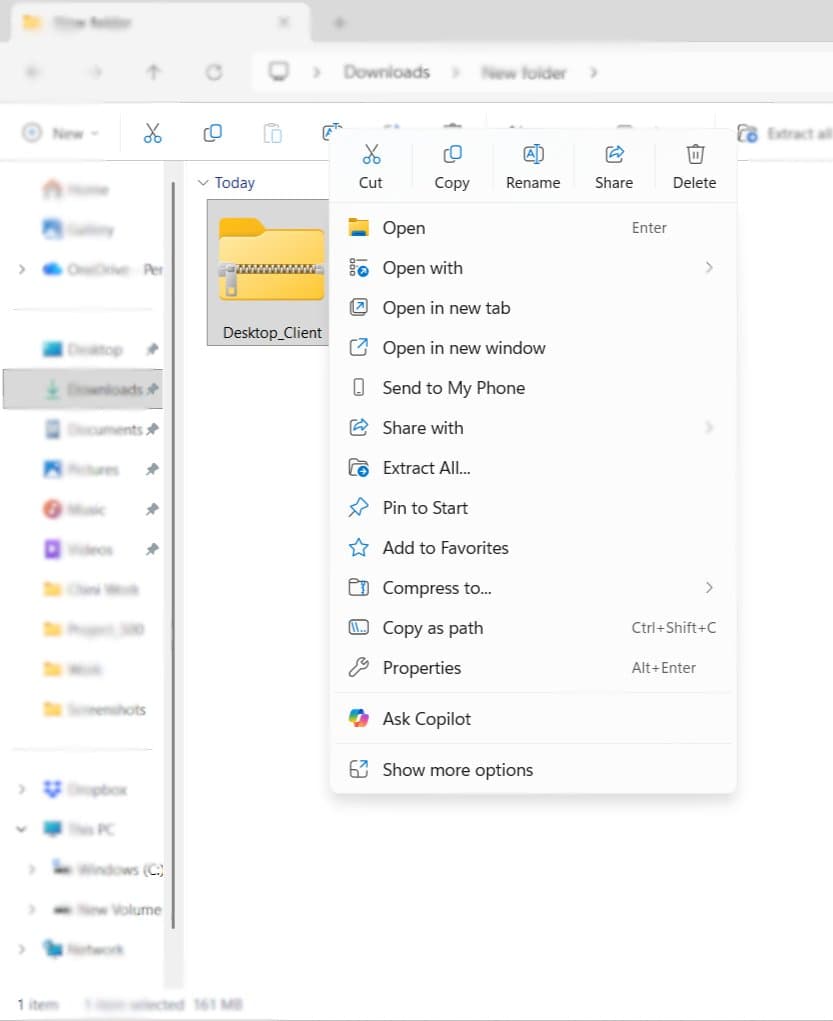
Right-click the ZIP and choose Extract All
Find the downloaded ZIP file in your Downloads folder. Right-click it and select Extract All from the menu.
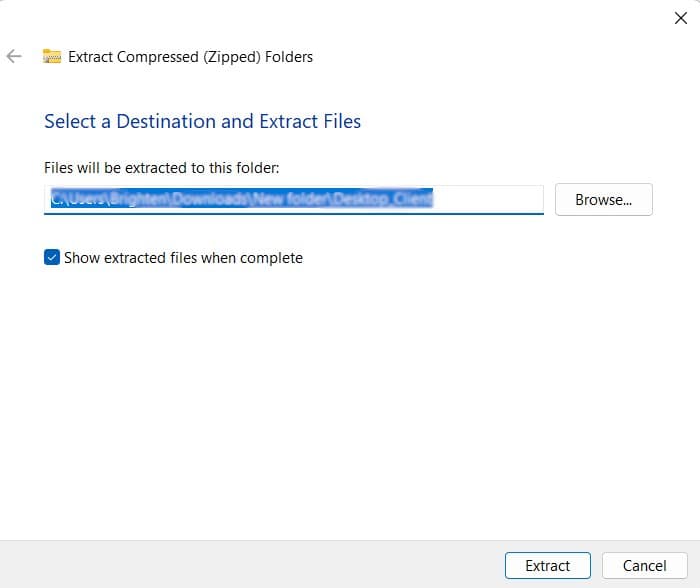
Click Extract to unpack the files
A dialog will appear asking where to extract. Leave the default location and click Extract.
Open the folder and run the installer
Open the extracted folder and double-click the ReviewRoom Setup file. Windows will show a security warning. This is expected for all newly downloaded apps. Click More info to continue.
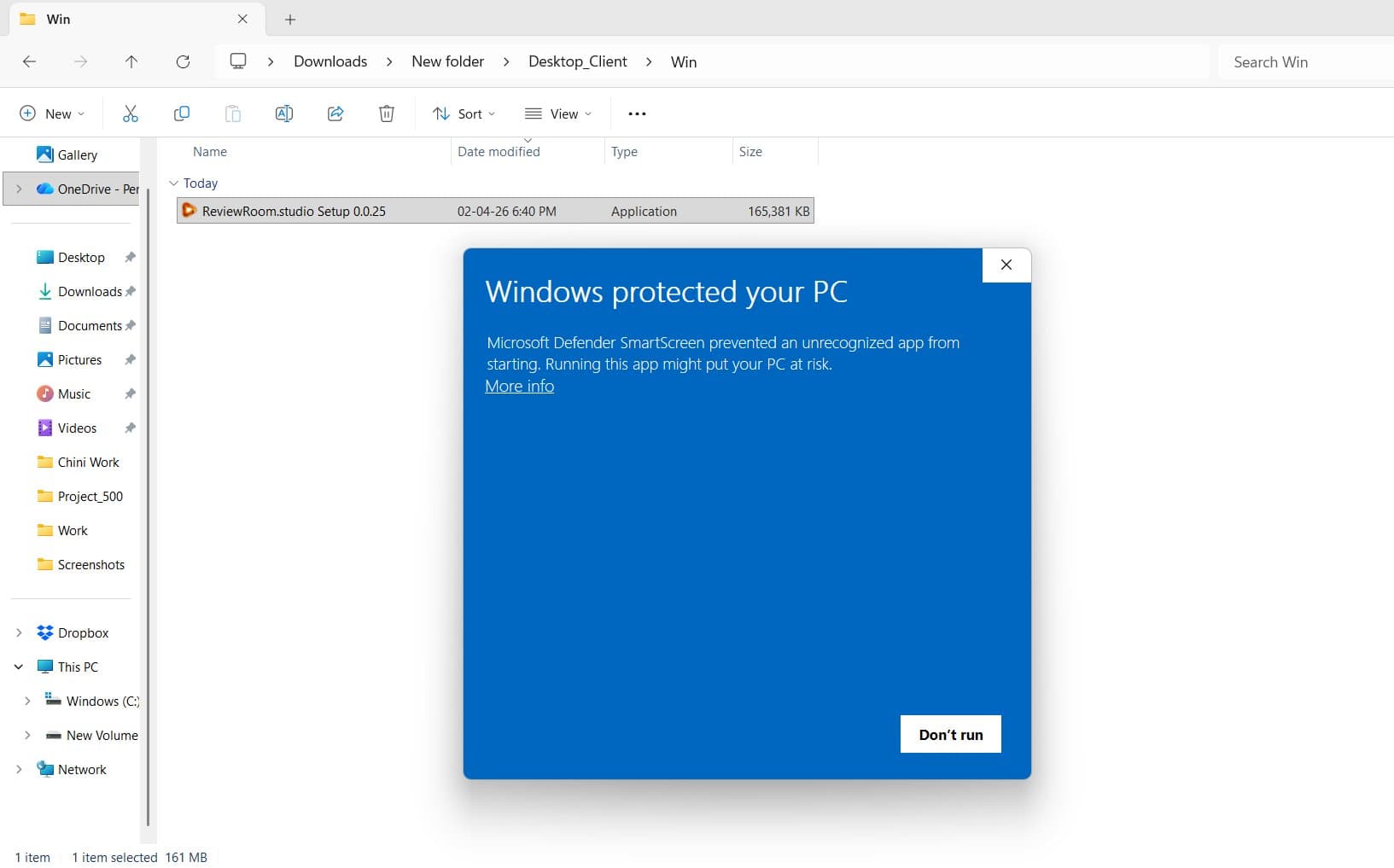
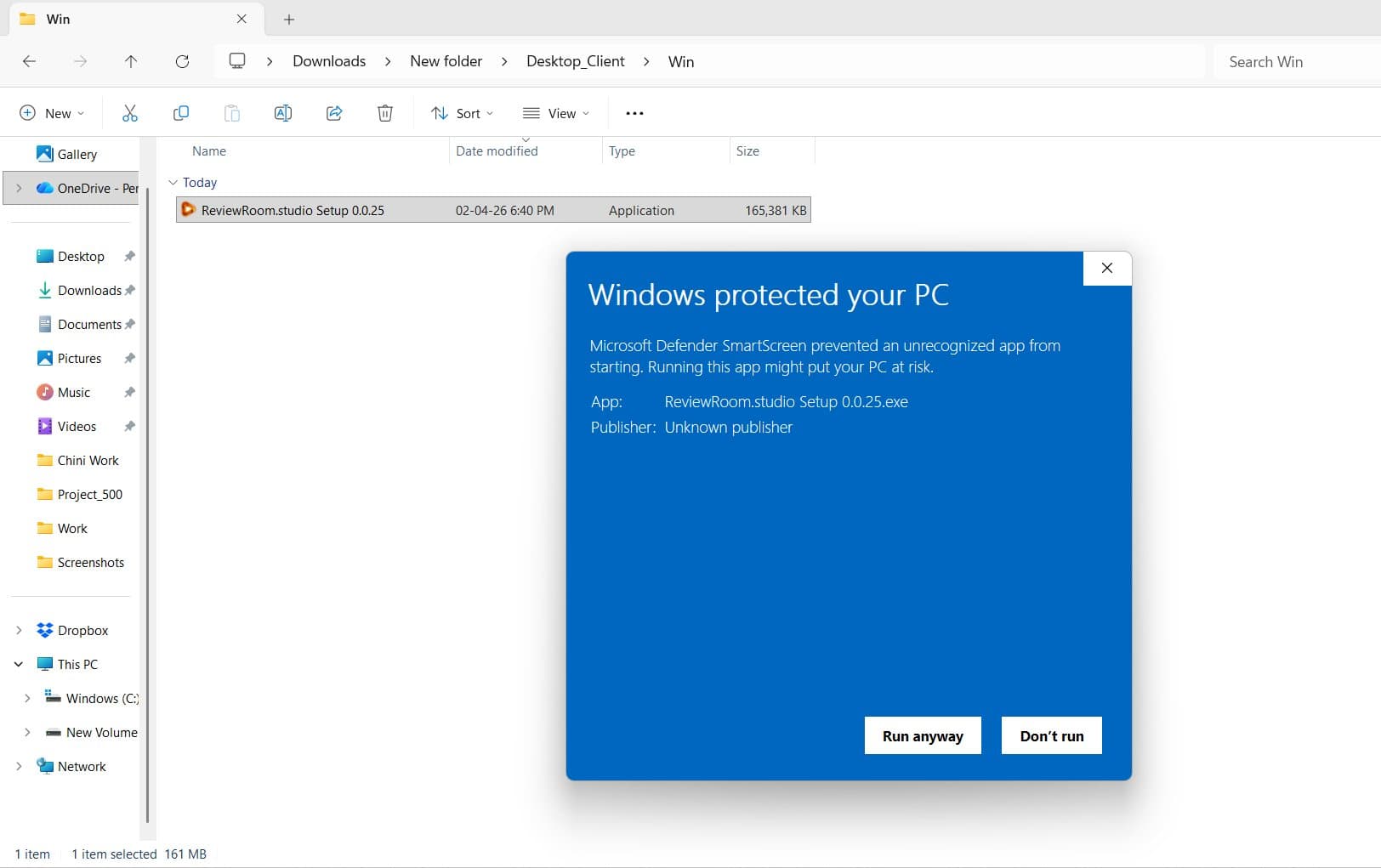
Click Run anyway
After clicking More info, a Run anyway button will appear. Click it to start the installer.
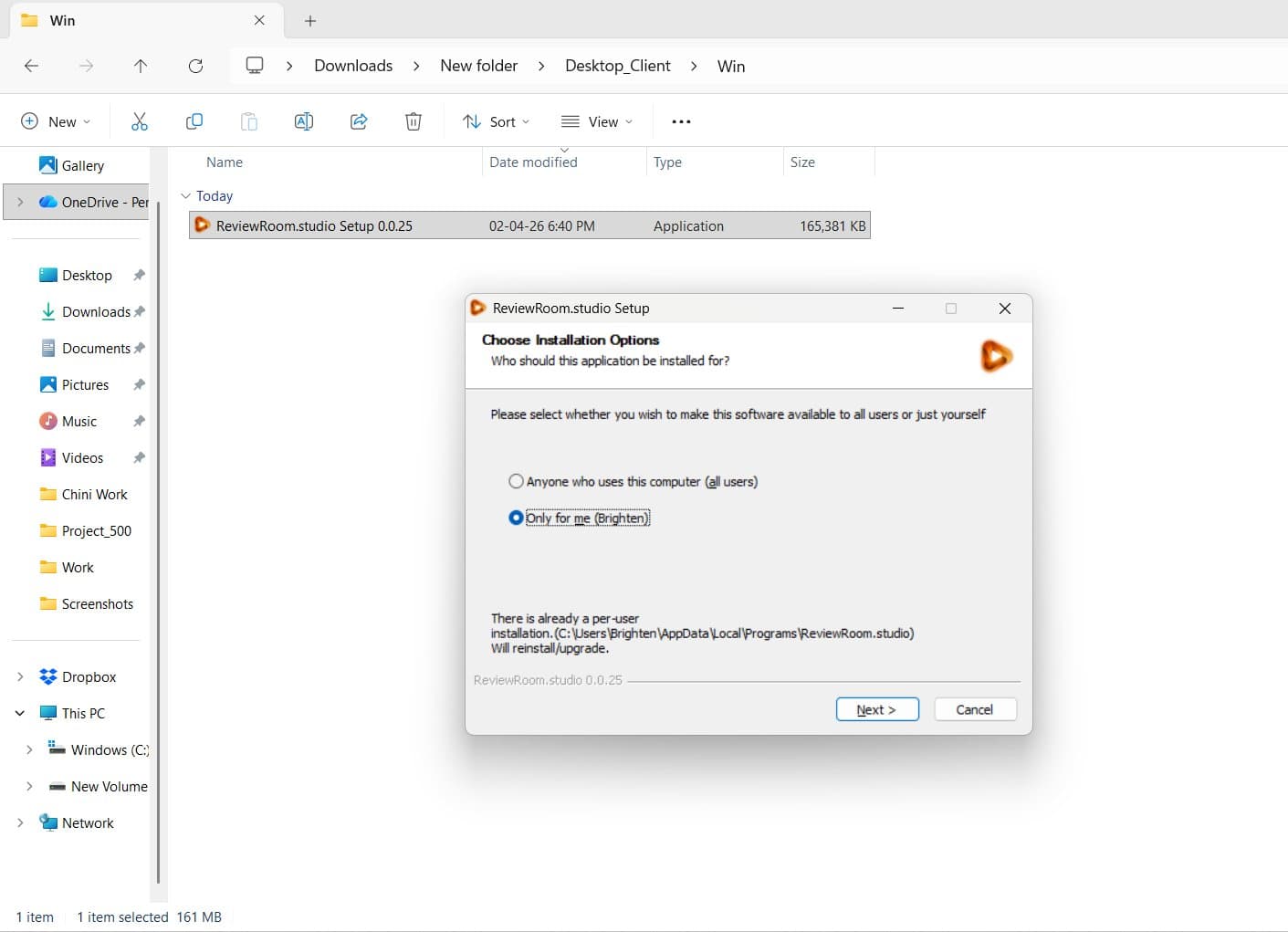
Choose who to install it for, then click Next
The installer will ask if you want ReviewRoom available for all users on this computer, or just for yourself. Choose your preference and click Next.
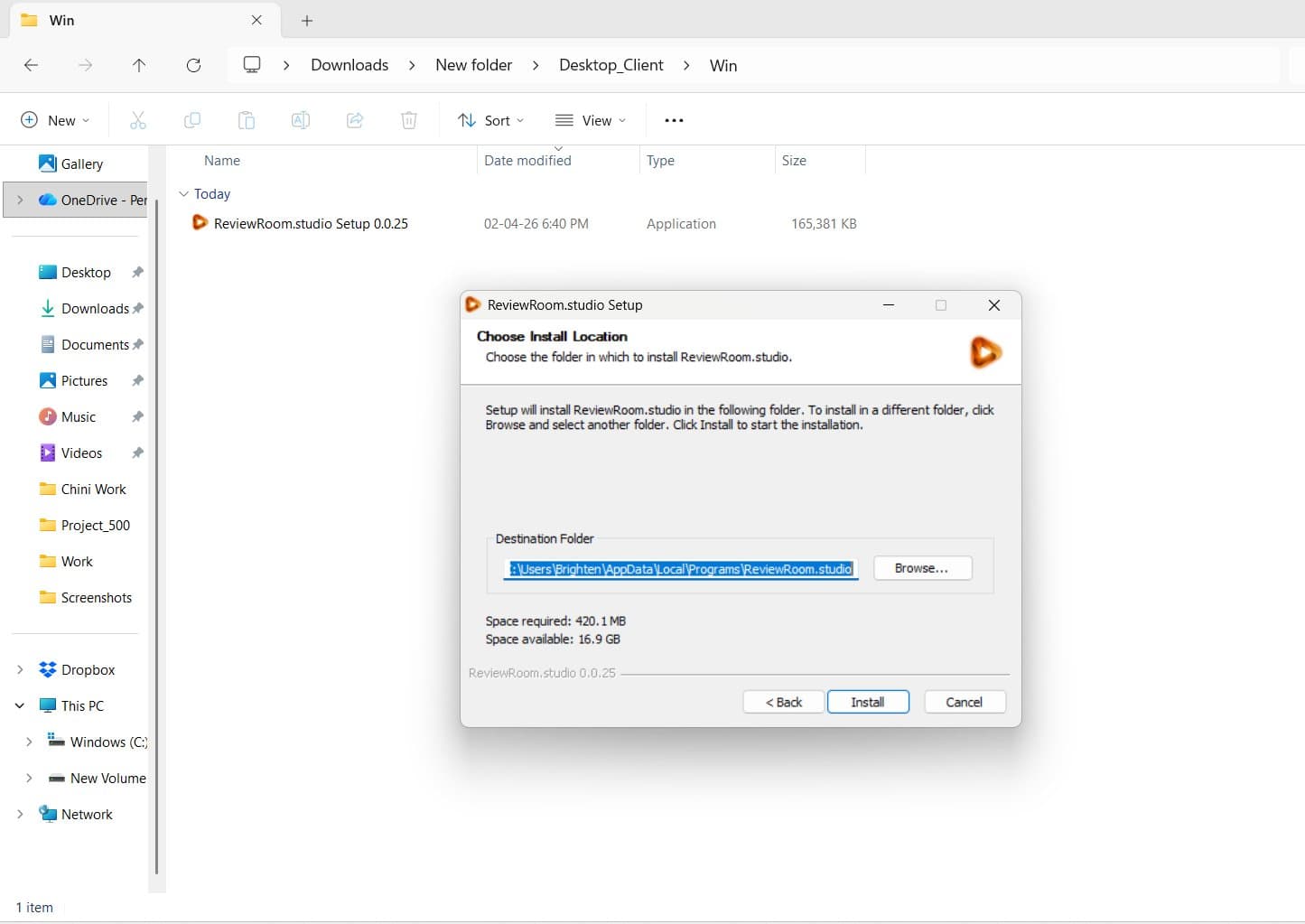
Confirm the install location and click Install
The installer will show the destination folder. You can leave it as default. Click Install to begin.
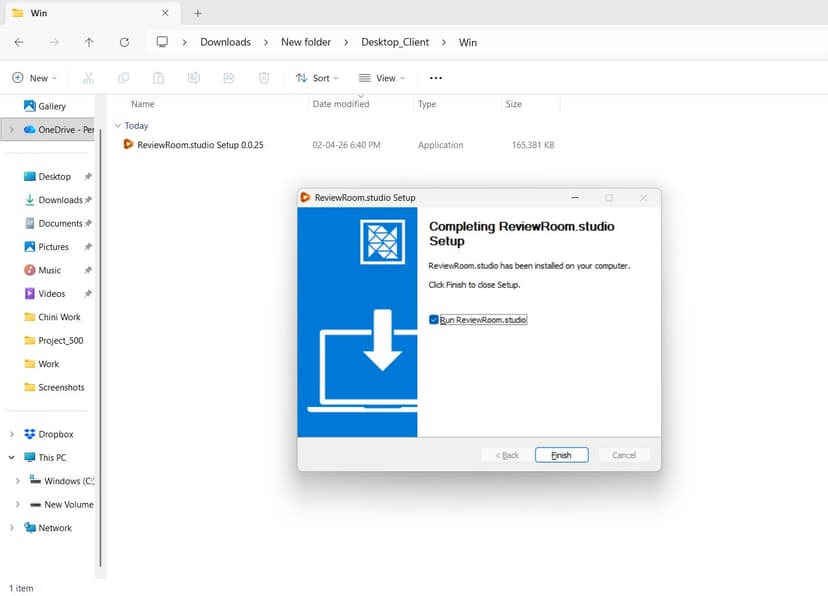
Click Finish. Your uploads will begin automatically.
Once installation is complete, click Finish. The desktop client will launch, connect, and your media will start uploading right away.

Enable Local Network Access
The ReviewRoom desktop client communicates with the web app through your local network. Modern browsers block this by default for security. You need to allow it once for uploads to work.
Google Chrome
Most common browser · Recommended
- 1
When you first use ReviewRoom with the desktop client, Chrome will show a notification bar at the top of the page or a popup asking:
“reviewroom.studio wants to connect to a device on your local network” - 2
Click Allow to grant permission. This is a one-time setting — Chrome remembers your choice.
- 3
If you missed the prompt or accidentally blocked it, you can fix it:
- •Click the lock icon (or tune icon) in the address bar next to the URL
- •Click Site settings
- •Find “Private network access” or “Local network access” and set it to Allow
- •Refresh the page
Or go directly to Chrome site settings — paste this into your address bar:
chrome://settings/content/siteDetails?site=https://www.reviewroom.studioMicrosoft Edge
Built on Chromium · Same steps as Chrome
Edge uses the same Chromium engine as Chrome, so the permission flow is identical:
- 1
Look for the “wants to connect to a device on your local network” prompt and click Allow.
- 2
If blocked: Click the lock icon in the address bar → Permissions for this site → Set Local network access to Allow.
- 3
Refresh the page. The desktop client should show as Online.
Or go directly to Edge site settings — paste this into your address bar:
edge://settings/content/siteDetails?site=https://www.reviewroom.studioMozilla Firefox
Different permission model
Firefox handles local network access differently. In most cases, localhost connections are allowed by default. If the desktop client is not connecting:
- 1
Type
about:configin the address bar and press Enter. - 2
Accept the warning and search for
network.dns.preferIPv4. - 3
If it's set to false, toggle it to true.
- 4
Also ensure your firewall or antivirus is not blocking connections on localhost.
Safari (macOS)
For future macOS desktop client
Safari may show a prompt asking to allow connections to local network devices. Click Allow when prompted. If you experience issues, go to Safari → Settings → Websites → Local Network and ensure reviewroom.studio is set to Allow.
The macOS desktop client is currently in development. Once available, these steps will apply.
Still showing as Offline?
If you've allowed local network access and the client still shows Offline, try these additional steps:
Restart the desktop client
Right-click the ReviewRoom icon in your system tray and choose Quit, then relaunch from Start Menu.
Hard refresh the browser
Press Ctrl + Shift + R (Cmd + Shift + R on Mac) to do a hard refresh of the page.
Check your firewall
Ensure your firewall or antivirus is not blocking ReviewRoom on port 8765 or localhost connections.
Disable VPN temporarily
Some VPNs intercept local network traffic. Try disconnecting your VPN and refreshing.
FAQs
Common questions about the desktop client.
Ready to upload your first project?
Download the ReviewRoom desktop client for Windows and get your media into your reviewers' hands in minutes.