How to Review R3D and BRAW Files Without Proxies
Local GPU transcoding means your RAW files stay on your machine. Only the browser-ready version reaches the cloud.

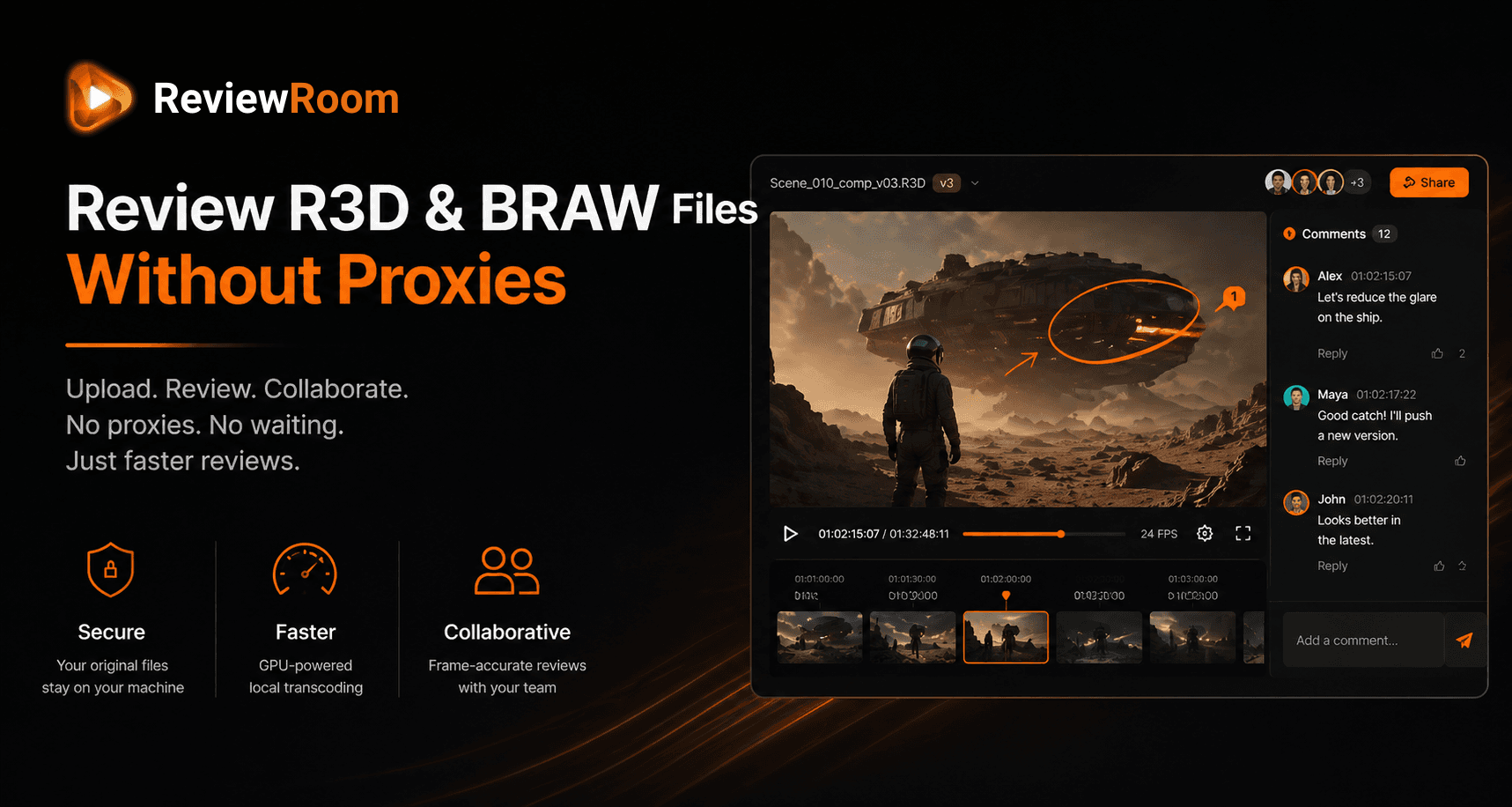
If you shoot on a RED camera, you know what R3D files feel like to deal with outside of your editing suite. And if you work with Blackmagic RAW, BRAW has its own complications the moment you try to share footage for review. The files are large, the format is proprietary, and almost every review tool on the market asks you to convert them before you can even get started.
That conversion step is where time disappears. The frustrating part is that it adds nothing to the work, it is pure overhead, a tax on the process that exists only because the tool was not built to handle professional camera formats natively.
Key Takeaways
- Proxy workflows add 30 to 60 minutes of pure overhead per review cycle for EXR and ProRes sequences. This compounds across every round of feedback on every project.
- ReviewRoom's desktop client transcodes R3D, BRAW, ProRes, EXR, and other professional formats locally on your GPU. Your original RAW files never leave your machine at any point.
- Only the browser-ready H.264 MP4 is uploaded through a global CDN. Source footage stays on local hardware where it belongs.
- After the desktop client is installed, the workflow for R3D and BRAW is the same drag-and-drop as any other format. No separate proxy export step.
Why Proxy Workflows Exist in the First Place
To understand why ReviewRoom's approach matters, it helps to understand why proxies became standard practice in the first place.
R3D and BRAW files are camera-native RAW formats. They are designed to preserve as much information as possible straight from the sensor, which makes them ideal for colour grading and post-production but genuinely difficult for anything that needs to happen quickly, including review. Most cloud-based review tools cannot ingest these formats directly. Their infrastructure is built around compressed, browser-friendly video, not high-bit-depth RAW footage.
R3D file structure documentation from RED Digital Cinema: RED: R3D File Structure (REDCINE-X Pro Guide) details the proprietary hierarchical container format (.RDM/.RDC) and why standard cloud tools cannot decode R3D without a dedicated RED SDK.
Blackmagic RAW (BRAW) is documented at: Blackmagic Design, Blackmagic RAW including its sensor-level colour science that standard cloud pipelines cannot process without conversion.
So teams create proxies: lower resolution, compressed versions of the original files that are easier to move around, upload, and play back. The proxy gets shared for review, notes come back, and the editor works on the original. It works, but it adds a step, sometimes several steps, to every single round of feedback. On a project with multiple review rounds, that overhead compounds quickly.
The other problem with proxy workflows is version confusion. If proxies are not labelled and managed carefully, notes end up referencing the wrong file or the wrong cut. A review cycle that should take a day turns into a week of back-and-forth trying to figure out what was approved and what was not.
What ReviewRoom Does Differently
.webp&w=2048&q=75&dpl=dpl_AphpNfo4V4Zn8mjUh5mGBvMdqqwX)
ReviewRoom handles the transcoding locally, on your own machine, using your GPU. Instead of asking you to convert your files before uploading, or doing the conversion on a cloud server after upload, the ReviewRoom desktop client takes the heavy format directly and produces a browser-ready H.264 MP4 on your hardware. Only that lightweight file gets uploaded to the cloud. The original RAW footage never leaves your machine.
This matters for two reasons. First, it is significantly faster. Other tools that rely on cloud transcoding require you to pre-convert files before uploading, and then the cloud transcodes again once the file arrives. That double conversion can take 30 minutes to over an hour for a substantial RAW sequence. ReviewRoom eliminates both steps. Your GPU does the work in a fraction of the time, and the transcoded file moves through accelerated chunked uploads over a global CDN.
Second, it is more secure. Unreleased footage, pre-grade material, and RAW camera files from a production are among the most sensitive assets a studio handles. The fact that those files stay on your machine and never travel to a third-party server is a meaningful security advantage, particularly for productions working under strict NDA or managing pre-release content.
How Uploading Works in ReviewRoom
.webp&w=2048&q=75&dpl=dpl_AphpNfo4V4Zn8mjUh5mGBvMdqqwX)
ReviewRoom keeps the upload process straightforward, and the experience depends on the format you are working with.
For standard compressed formats including MP4, MOV, WEBM, and WMV, you can drag and drop directly into the browser. No desktop client required, no extra steps. If your deliverable or review cut is already in one of these formats, you are ready to go immediately.
For professional formats like R3D, BRAW, ProRes, H.265, EXR image sequences, MKV, and AVI, ReviewRoom will prompt you to open or download the desktop client. This is a one-time installation. Once the desktop client is set up, you can drag and drop any of these formats and the client handles everything, it detects the format automatically, transcodes it locally on your GPU, and uploads the result without any manual conversion on your part.
That one-time setup is the only barrier. After the desktop client is installed, the workflow for an R3D or BRAW file is the same drag-and-drop as any other format. No separate proxy export step, no format conversion before you can start, and no waiting on a cloud server to process the file.
Who This Is Built For
If your production uses RED cameras, Blackmagic cameras, ARRI, or any other camera system that produces RAW or high-bitrate professional formats, ReviewRoom's transcoder removes what is typically the most tedious part of setting up a review session.
It is also well-suited to VFX teams working with EXR image sequences and DPX files, editorial teams handling ProRes masters, and anyone who has ever sat in front of a progress bar waiting for a file to convert before a review could even begin.
The platform supports unlimited collaborators on every plan, so the whole team, including clients, directors, and external stakeholders, can be part of the same review session without per-seat costs adding up.
Getting Started
ReviewRoom has a free plan that includes 2 GB of storage, unlimited collaborators, and access to the core review tools including frame-accurate annotations, timecoded comments, and version history. No credit card is required to get started.
For teams working regularly with RAW formats and heavier productions, the Studio plan at $10 per user per month adds 250 GB of shared storage, cloud transcoding as a fallback option, and advanced annotation tools.
Frequently Asked Questions
Q: Do I need to create proxies before uploading R3D or BRAW files to ReviewRoom?
A: No. The ReviewRoom desktop client handles transcoding automatically. Drag your R3D or BRAW files into the client, and it transcodes them locally on your GPU, then uploads only the resulting browser-ready file. Your RAW originals stay on your drive.
Q: Which professional camera formats does ReviewRoom support?
A: The desktop client handles R3D (RED cameras), BRAW (Blackmagic cameras), ProRes, H.265, EXR image sequences, DPX, MKV, and AVI. Standard formats including MP4 and MOV upload directly in the browser without the desktop client.
Q: Is local GPU transcoding faster than cloud transcoding?
A: For most files, yes. Cloud transcoding on other platforms typically means a double conversion: you pre-convert before uploading, then the server transcodes again. ReviewRoom transcodes once, on your machine, and is typically at least twice as fast overall. After the one-time desktop client install, the workflow is identical to uploading any other format.
If proxy workflows have been eating into every project, get started at reviewroom.studio or reach the team at info@reviewroom.studio.
Try ReviewRoom free
Fast, secure video and image review for creative teams. Free plan available, no credit card required.
Start Collaborating Free